Stopping BYOVD Attacks on Windows: Vulnerable Driver Blocklist, Memory Integrity, the ASR Driver Rule and Hunting Loaded Drivers
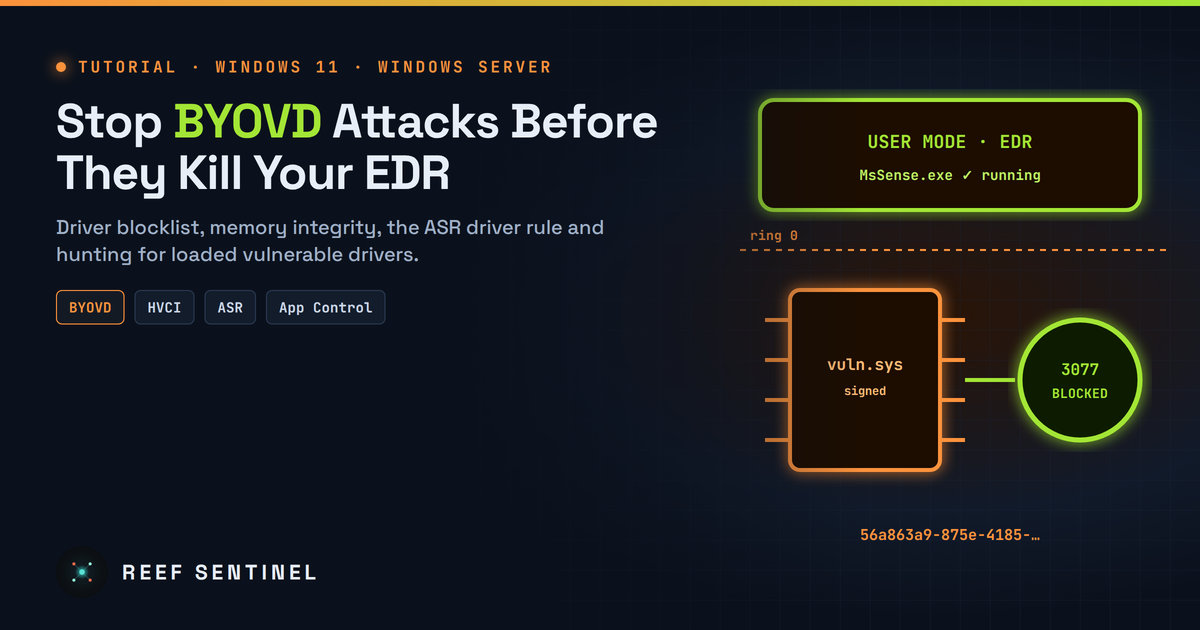
Harden Windows 11 and Windows Server against bring-your-own-vulnerable-driver attacks by enforcing Microsoft's driver blocklist, HVCI and the ASR driver rule, then hunting for vulnerable drivers already running.
"Bring your own vulnerable driver" (BYOVD) has become a routine step before ransomware runs. This week researchers described the Lindnor backdoor deploying five vulnerable drivers and 13 security-killing tools on SQL Servers in about an hour, before Anubis ransomware. The attacker loads a legitimately signed but flawed kernel driver and uses it to kill EDR processes from the kernel. Windows already ships three defences against this: the Microsoft Vulnerable Driver Blocklist, memory integrity (HVCI), and a Defender Attack Surface Reduction rule. This tutorial checks all three on a Windows 11 or Windows Server machine, applies the latest blocklist, and adds hunting for drivers that get past them.
Prerequisites
- Windows 11 (22H2 or later) or Windows Server 2019/2022/2025, with local administrator rights.
- Microsoft Defender Antivirus active (for the ASR rule). Defender for Endpoint is optional and adds central reporting.
- An elevated PowerShell 7 or Windows PowerShell 5.1 session.
- A test machine or pilot group. Blocking drivers can break hardware utilities, and in rare cases a device can blue-screen, so don't push enforcement straight to the whole fleet.
Step 1: Check the current protection state
Start by finding out what is already on. The blocklist is on by default since the Windows 11 2022 update. It's also enforced whenever memory integrity, Smart App Control or S mode is active.
# Vulnerable driver blocklist switch (1 = on, 0 = off; missing = default)
Get-ItemProperty 'HKLM:\SYSTEM\CurrentControlSet\Control\CI\Config' `
  -Name VulnerableDriverBlocklistEnable -ErrorAction SilentlyContinue

# Memory integrity / HVCI: a "2" in SecurityServicesRunning means HVCI is running
Get-CimInstance -Namespace root\Microsoft\Windows\DeviceGuard -ClassName Win32_DeviceGuard |
  Select-Object VirtualizationBasedSecurityStatus, SecurityServicesConfigured, SecurityServicesRunning

# ASR rules currently configured
Get-MpPreference | Select-Object AttackSurfaceReductionRules_Ids, AttackSurfaceReductionRules_Actions
You can also check in Windows Security > Device security > Core isolation details. Look at Memory integrity and Microsoft Vulnerable Driver Blocklist. If the blocklist toggle is greyed out, memory integrity or Smart App Control is on and is already enforcing it.
Step 2: Turn on the blocklist and memory integrity
If the blocklist is off, turn it on in the Windows Security app, or with a registry value and a reboot:
New-Item -Path 'HKLM:\SYSTEM\CurrentControlSet\Control\CI\Config' -Force | Out-Null
Set-ItemProperty -Path 'HKLM:\SYSTEM\CurrentControlSet\Control\CI\Config' `
  -Name VulnerableDriverBlocklistEnable -Type DWord -Value 1
Microsoft recommends memory integrity (HVCI) as the stronger protection. Turn it on in Core isolation details. For managed fleets, use Intune or Group Policy: Computer Configuration > Administrative Templates > System > Device Guard > Turn On Virtualization Based Security, with Virtualization Based Protection of Code Integrity set to Enabled with UEFI lock or Enabled without lock. Choose "without lock" while you pilot so you can roll back remotely.
Before you enable HVCI widely, check for incompatible drivers. Windows Security lists them when you try to turn on memory integrity. Update or remove those drivers first.
Step 3: Apply the latest blocklist instead of waiting for Windows Update
The blocklist built into Windows gets updated through monthly updates and a quarterly refresh. The version Microsoft publishes for download is usually more complete, because some blocks are held back from the in-box list for compatibility. To apply it:
- Download the App Control policy refresh tool (
https://aka.ms/refreshpolicy). - Download and extract the vulnerable driver blocklist binaries (
https://aka.ms/VulnerableDriverBlockList). - Choose the audit version first, rename it to
SiPolicy.p7b, and copy it into place:
Copy-Item .\SiPolicy.p7b "$env:windir\System32\CodeIntegrity\SiPolicy.p7b" -Force
# Then run the refresh tool you downloaded in step 1 (elevated)- Confirm it loaded. In Event Viewer, open Applications and Services Logs > Microsoft > Windows > CodeIntegrity > Operational and filter for event 3099. The PolicyName and PolicyId should match the blocklist XML. On Windows 11 22H2 and later you can also list active policies:
CiTool.exe --list-policiesLeave the audit version running for a week. Audit events (3076) show which drivers would be blocked. Once nothing important appears, swap in the enforced version. Enforced blocks are logged as 3077. Drivers that are already running are only blocked after a reboot.
If you already run your own App Control (WDAC) allowlist, merge the blocklist with it rather than overwriting SiPolicy.p7b. Remove the blocklist's Allow All rules before merging.
Step 4: Stop new vulnerable drivers being written to disk
The blocklist stops listed drivers from loading. The ASR rule Block abuse of exploited vulnerable signed drivers stops apps from writing them to disk in the first place. Run it in audit mode first, then switch to block:
$rule = '56a863a9-875e-4185-98a7-b882c64b5ce5'
Add-MpPreference -AttackSurfaceReductionRules_Ids $rule -AttackSurfaceReductionRules_Actions AuditMode
# After a clean pilot:
Add-MpPreference -AttackSurfaceReductionRules_Ids $rule -AttackSurfaceReductionRules_Actions Enabled
ASR events go to Microsoft-Windows-Windows Defender/Operational: 1121 for a block and 1122 for audit. In Intune the rule is named Block abuse of exploited vulnerable signed drivers (Device).
Step 5: Hunt for drivers that are already loaded
None of the three controls catches every vulnerable driver, and the community list moves faster than Microsoft's. The LOLDrivers project publishes known-vulnerable and malicious driver hashes. This script compares the hashes of running drivers against that list:
$lol = Invoke-RestMethod 'https://www.loldrivers.io/api/drivers.json'
$bad = @{}
foreach ($d in $lol) { foreach ($s in $d.KnownVulnerableSamples) {
  if ($s.SHA256) { $bad[$s.SHA256.ToUpper()] = $d.Tags -join ',' } } }

Get-CimInstance Win32_SystemDriver | Where-Object State -eq 'Running' | ForEach-Object {
  $p = $_.PathName -replace '^\\\?\?\\','' -replace '^\\SystemRoot', $env:windir
  if ($p -notmatch '^[A-Za-z]:') { $p = Join-Path $env:windir $p }
  if (Test-Path $p) {
    $h = (Get-FileHash $p -Algorithm SHA256).Hash
    if ($bad.ContainsKey($h)) { [pscustomobject]@{Driver=$_.Name; Path=$p; Match=$bad[$h]} }
  }
}
No output means none of the running drivers match. For any match, find the software that installed it, remove or update it, and if it was unexpected, treat the host as compromised.
Also watch for new kernel driver services. Attackers usually install the vulnerable driver as a service right before they use it:
Get-WinEvent -FilterHashtable @{LogName='System'; Id=7045} -MaxEvents 200 |
  Where-Object { $_.Message -match 'kernel mode driver' } |
  Select-Object TimeCreated, Message
If you run Sysmon, Event ID 6 (driver loaded) logs the hash and signature of every driver load. In Defender for Endpoint advanced hunting:
DeviceEvents
| where Timestamp > ago(30d)
| where ActionType in ("AsrVulnerableSignedDriverAudited","AsrVulnerableSignedDriverBlocked","DriverLoad")
| project Timestamp, DeviceName, ActionType, FileName, FolderPath, SHA256, InitiatingProcessFileName
Drivers loaded from C:\Users\, C:\ProgramData\ or temp folders deserve a close look. Real hardware drivers rarely live there.
Verification
- Run Step 1 again. You should see
SecurityServicesRunningcontaining2, the blocklist value at1, and the ASR rule GUID with action1(Enabled). - In CodeIntegrity/Operational, a 3099 event names the downloaded blocklist policy.
CiTool.exe --list-policiesshows the policy as active.
Troubleshooting
- A hardware utility stopped working (RGB, fan control, overclocking tools). These often ship flawed drivers. Update the tool, or replace it. Avoid excluding it.
- Memory integrity won't turn on. Windows Security lists the incompatible drivers. Update or uninstall them, reboot, and try again.
- No 3099 event. Make sure the file is named exactly
SiPolicy.p7b, sits inSystem32\CodeIntegrity, and that the refresh tool ran elevated. - Blue screen after enforcement. Boot into Safe Mode or WinRE, delete
SiPolicy.p7b, reboot, then go back to the audit version.
Wrapping Up
BYOVD succeeds where a vulnerable signed driver can still load and EDR can then be killed from the kernel. Turning on memory integrity, applying the current blocklist, blocking new driver drops with ASR, and hunting the drivers already running closes most of that gap. That matters most on servers, where operators often switch these features off for "compatibility". It's an afternoon of work.